
 By Kavita Mistry
Being in the consumer tech industry for almost a decade, you might probably understand how important it is for me to have a seamless connection between my smartphone and laptop. Since I am an Android guy (for so many reasons!), the bridge between my Android phone and Windows laptop is crucial for me because I have to send so many files back and forth. Up until now, I relied on Microsoft Phone Link, Local Send, and some other third-party apps. But the experience wasn’t seamless TBH.
You either need to create an account, install apps on both devices, go through some steps, or you can only send files. This is a big deal-breaker that I’ve been living with for quite some time. Thankfully, I recently discovered a free tool called Sefirah, which, in my opinion, is far better than Microsoft Phone Link. The tool I am talking about is Sefirah. Let us discuss it below:
What is Sefirah?
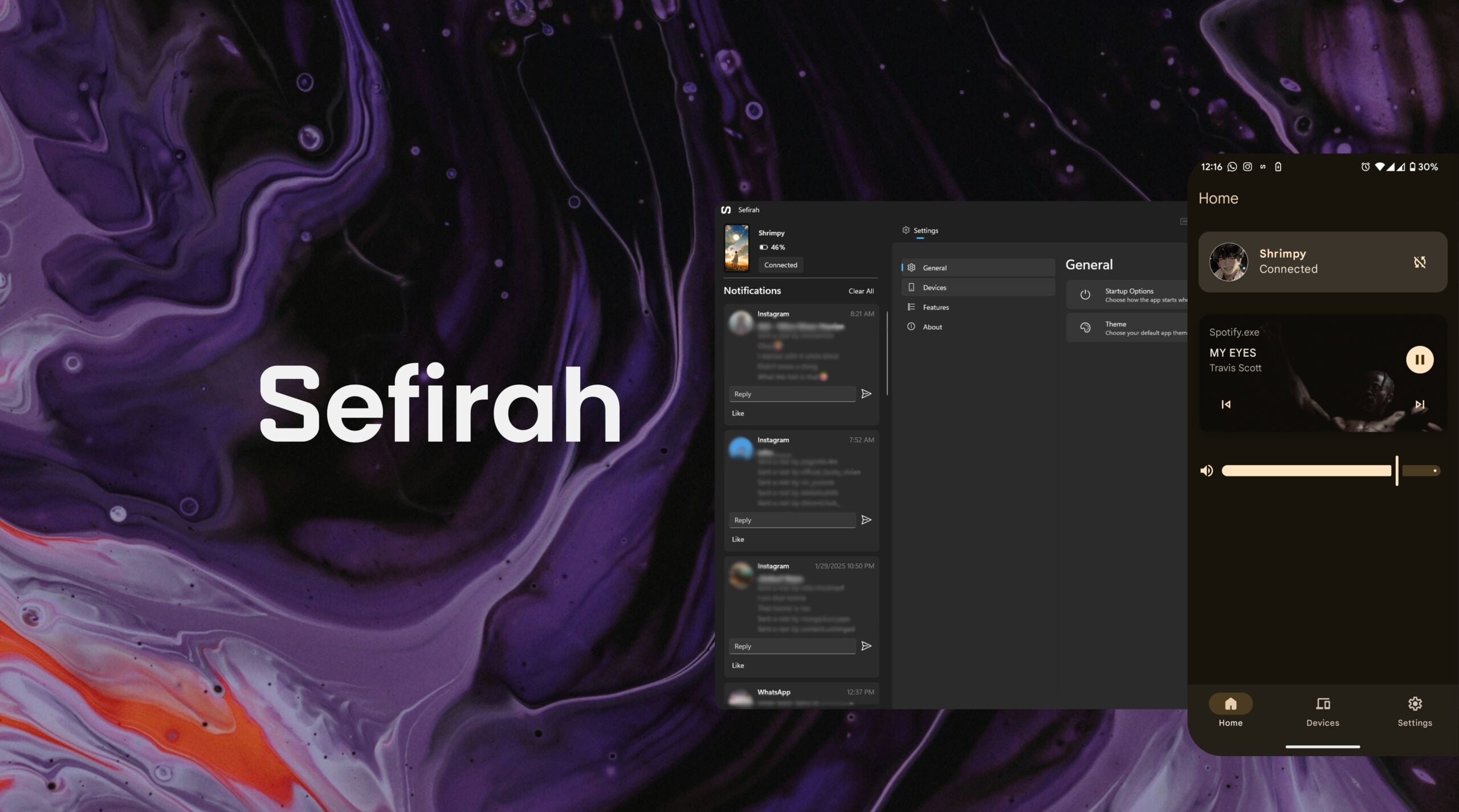
In simple words, Sefirah is a free tool that lets you connect your smartphone with your PC to make your life easier. While the real name of the developer isn’t known, it is developed by a GitHub developer who likes to be called “shrimqy.” While this app makes the movement of files between your smartphone and PC quick and easy, you will have a hard time finding it on the Play Store. This is why we would suggest you save time and use the link provided in this guide to quickly download it.
The thing with Sefirah is that it handles the connection between an Android phone and a Windows PC in a straightforward manner. Simply install the Android app on your phone and the PC app on your Windows laptop, pair them (which is uncomplicated), and you are set to rock and roll. The only thing that should match is the Wi-Fi network and the matching keys during pairing. Once connected, not only do you get the granular controls of your phone on your PC, but you also get to Lock, Hibernate, Restart, and Shutdown your PC from your mobile.
You can also adjust the volume control of your PC through your mobile phone. Sefirah gives you access to your smartphone’s clipboard, which, in my case, is a game-changer. Most of the time, when searching for new topics or going through the news, I use my smartphone. With Sefirah, I can save the links to my clipboard and access them directly on my PC. This is also the same from PC to smartphone, meaning you can access links saved on your PC’s clipboard on your smartphone. If you copy an image on your phone, that can also be copied and pasted over to your PC if you have enabled that feature.
Notifications from your phone show up on your PC, and it works flawlessly, no delay, no intrusive toast system. You can interact with the message straight from your PC and clear it straight from your desktop.
How to use Sefirah
You need to download the Sefirah app for Windows from the Microsoft Store. However, the Android app is not available on the Play Store, and you have to download it from the GitHub page here. Once that is done, launch the application on both your PC and your smartphone and follow the steps below;
- Connect both devices to the same Wi-Fi network.
- In the smartphone app, grant all the permissions.
- Tap on Add Device button on the smartphone app. You will see your PC pop up. Tap on it to connect to your PC. It will ask you to confirm the connection via a key. As soon as you tap connect, your phone and PC will get connected.
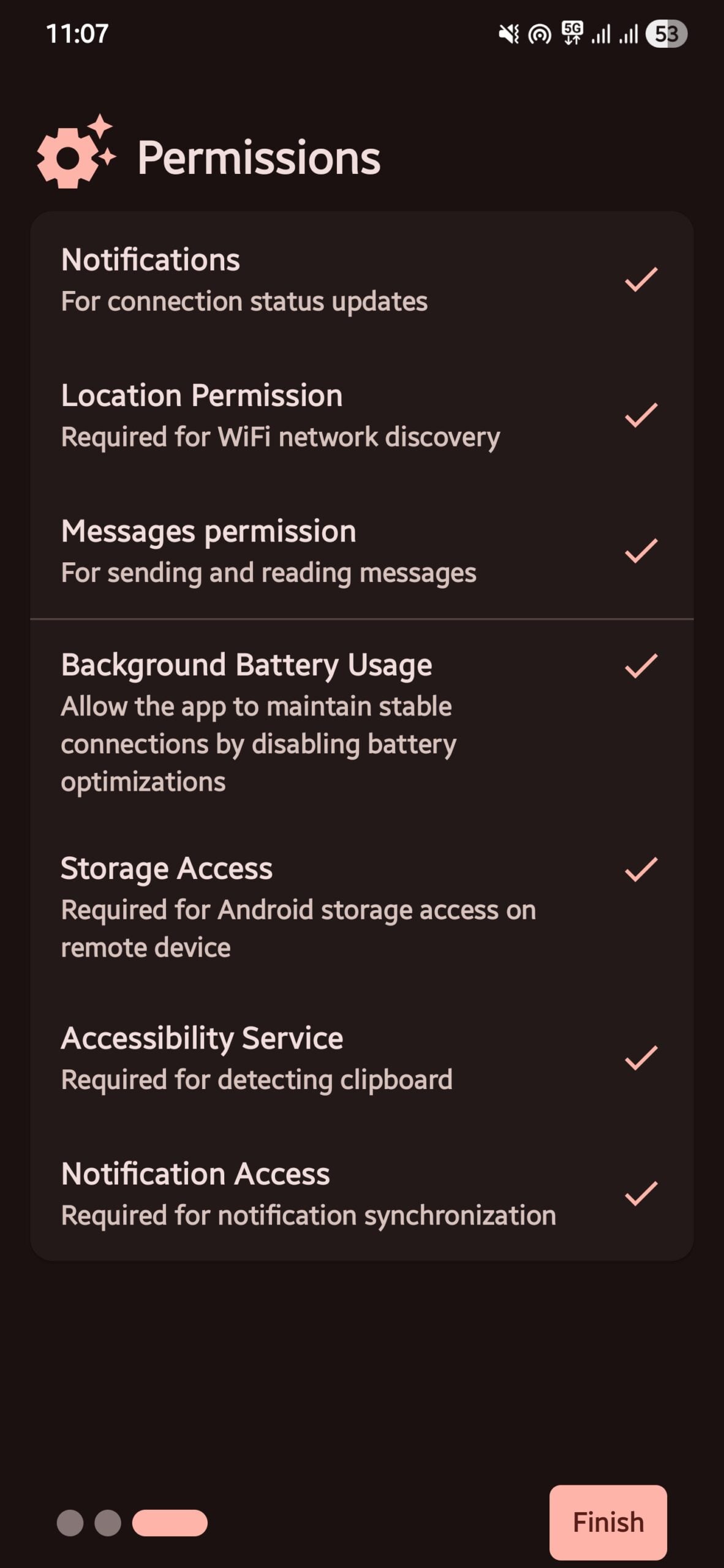
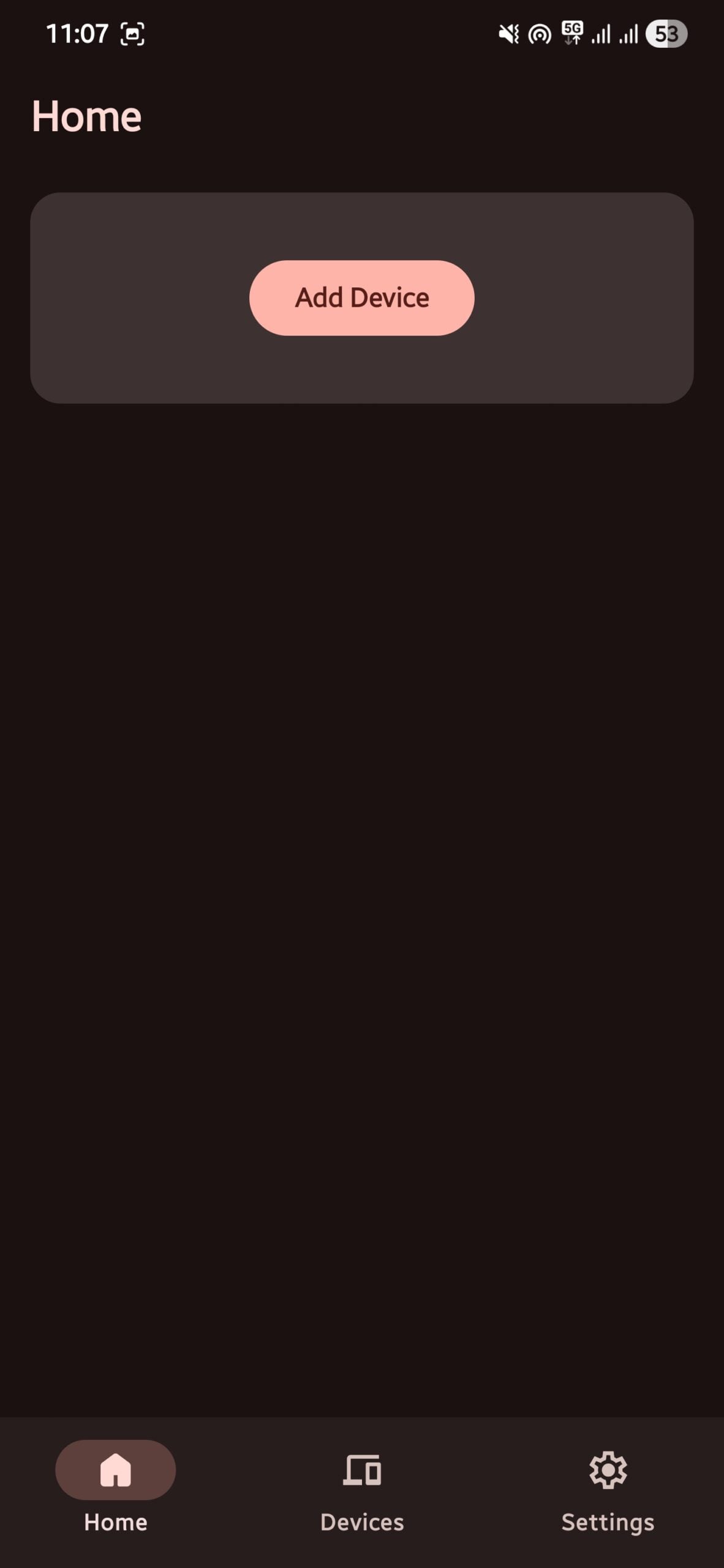
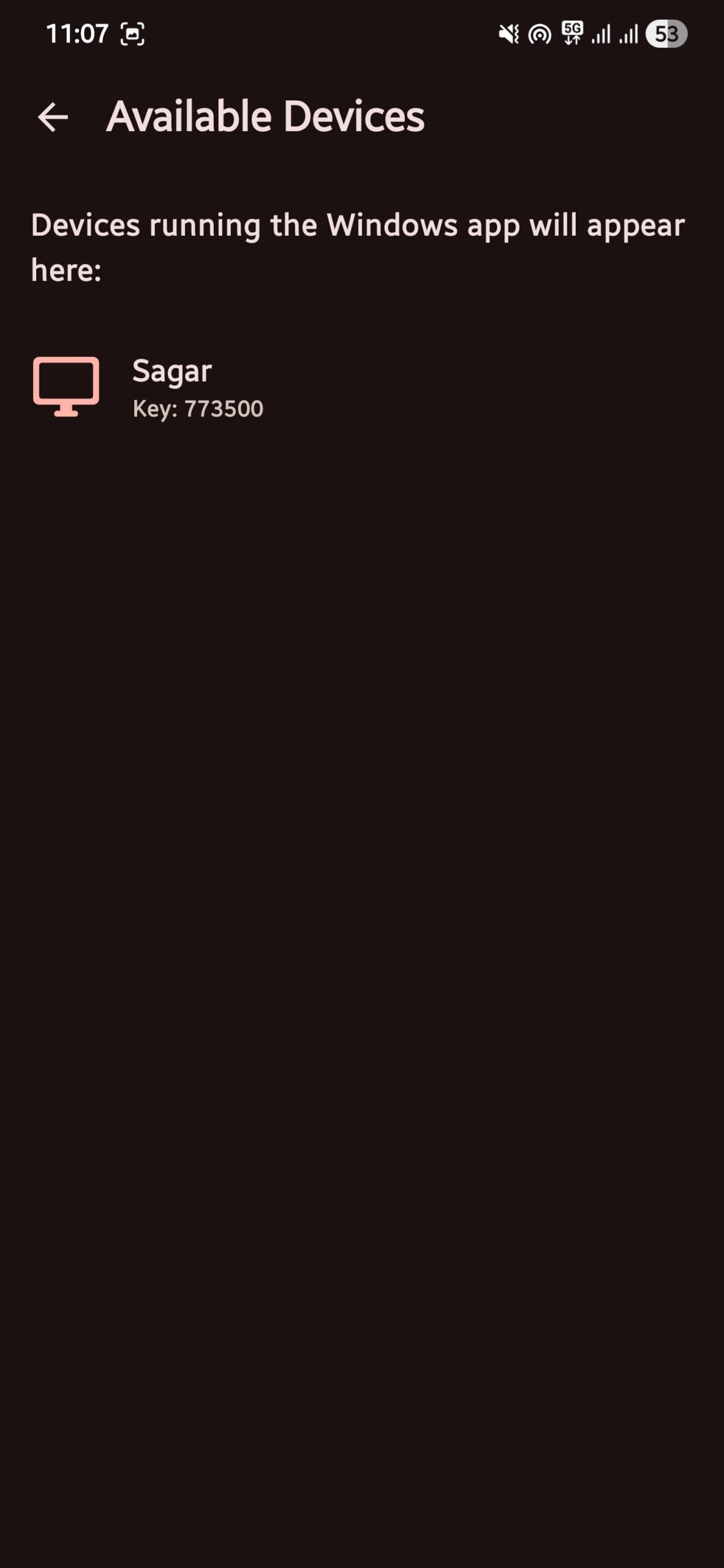
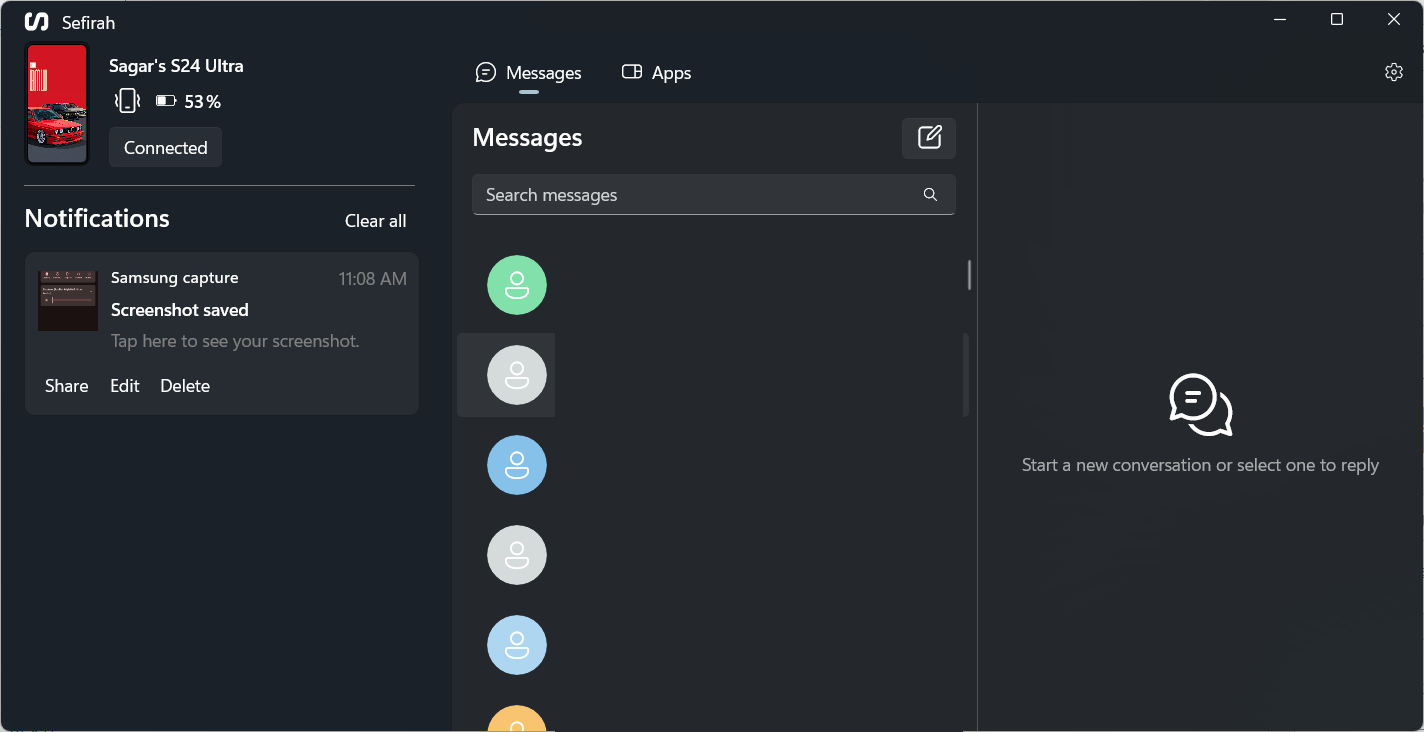
- On Sefirah for PC, you will see key info from your phone, such as:
- Your phone’s name and battery percentage.
- Your phone ring mode.
- Your phone’s wallpaper.
- Notifications you have received.
- All of your messages.
- Apps that you have installed.
- You can easily search for messages and apps from the dedicated search bar.
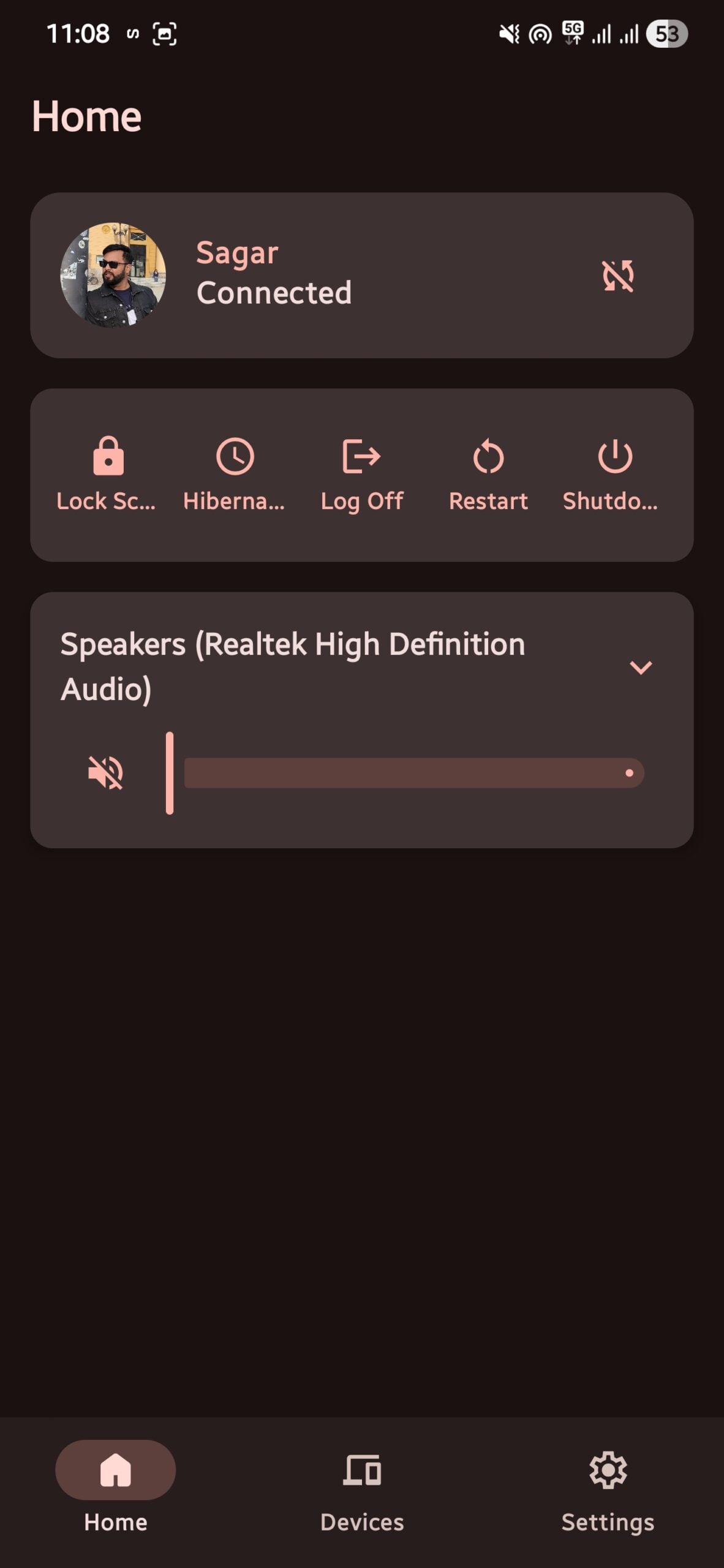
- On your phone, you will see key details of your PC, such as:
- Your PC’s image and name.
- Controls to lock screen, hibernate, log off, restart, and shut down.
- Volume control and mute button.
- Tapping the Settings button on the Sefirah PC app gives you access to some more features.
- Giving storage permission creates a network drive in Windows Explorer from where you can easily cut/copy/paste any files from your PC.
- You can directly open apps on your PC from your phone or screen mirror using a small app called Scrcpy. You can download it from here.
Phone Link out, Sefirah in
Setting up Sefirah and using it is quite easy. The app lets you enjoy all of your smartphone content on your PC, without needing to connect it via a USB cable. You can also perform some remote functions to control your PC, which is cool. Screen mirroring is also possible, and you don’t have to rely on third-party screen mirroring apps for the same. Let us know in the comments below, did you like Sefirah, or are you using some other application?