
 By Kavita Mistry
There is a feature in Windows 11 and 10 that lets you customize your lock screen and sign-in screen. It means you can easily change the background wallpaper visible on your Windows computer’s lock screen or welcome screen.
Now, before we move forward, let’s understand the difference between the lock screen (welcome screen) and the sign-in screen. Lock screen is the very first screen you see when you turn on your laptop. It generally shows time, date, and some notifications before you sign in.
And after that, the screen where you enter the password or PIN is known as the Welcome or Sign-in screen. However, both screens are different, but turning on a simple setting can make the lock screen wallpaper appear on the welcome screen as well.
In this article, I will guide you step-by-step on how you can change the welcome screen or lock screen wallpaper in Windows 11 or Windows 10.
Change Lock Screen Background in Windows 11/10 [Step by Step Guide]
The process to change the welcome screen background in both Windows 11 and 10 is almost the same. So, without confusing you, let’s move on to the quick steps that work for both versions of the Windows operating system.
Step 1. Open Lock Screen Settings
First of all, you need to go to your Windows settings. For that, you can either search for Settings through the Windows search bar or directly use the Win+I shortcut to open Settings.
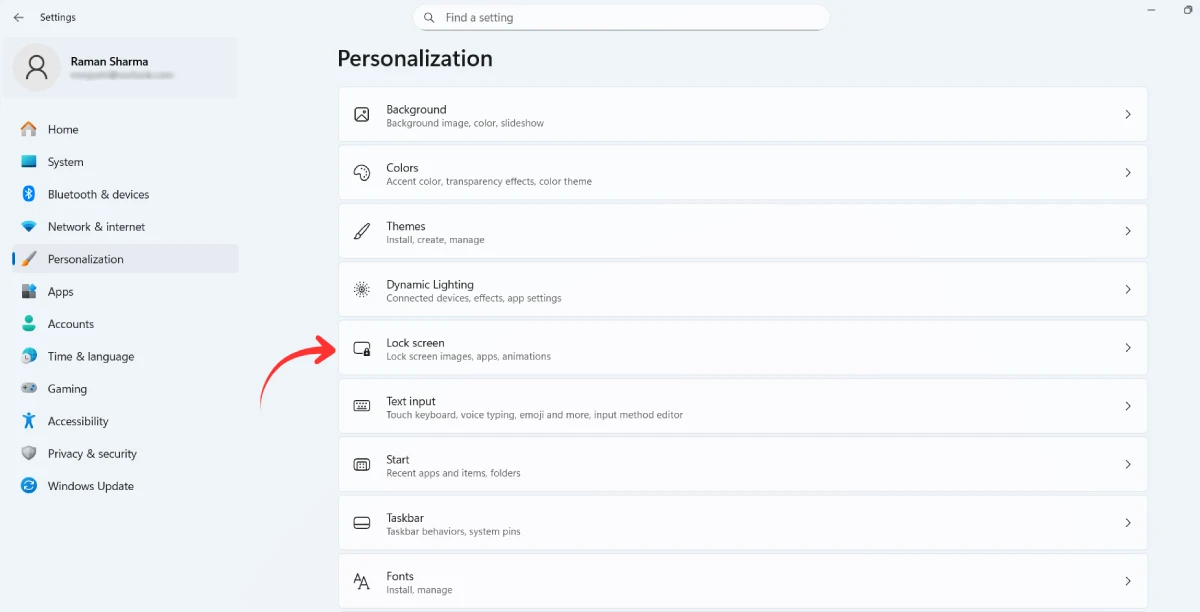
Now, on the Settings screen, click on Personalization from the left side menu and then click Lock Screen from the right side to open Lock Screen settings.
Step 2. Change Your Welcome Screen Background
So, finally, you’re about to personalize your Lock Screen. On the Lock Screen Personalization settings page, you’ll see the “Personalize your lock screen” option. It will show you three options to personalize the lock screen:
- Windows Spotlight – To automatically set up a new wallpaper every day.
- Picture – To set a single photo as wallpaper/background.
- Slideshow – To set auto-changing photos from a folder.
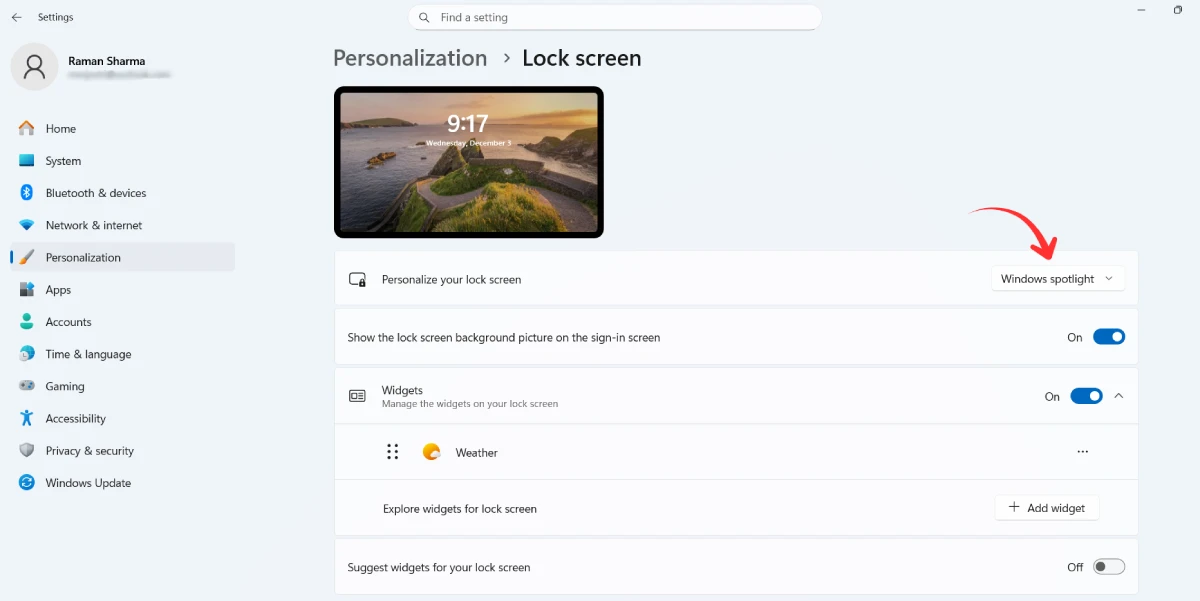
By choosing any of these options, you can easily change your lock screen background on a Windows 11/10 computer.
Step 3. Show the Lock Screen Background Wallpaper on the Sign-in Screen
This is an optional feature. If you want your background wallpaper to be displayed on the Sign-in screen too, you can simply turn on this feature.
On the same Lock Screen Personalization settings page, you’ll see an option that says “Show the lock screen background picture on the sign-in screen.” So, if you want to show the same picture on the sign-in screen too, just turn this toggle on.
Step 4. Test your Personalized Lock Screen
It’s time to test how your new wallpaper is looking on the Lock Screen of your Windows laptop. To test it out, there’s no need to restart your PC. Just press Win+L and it will bring you to the Welcome Screen.
This is how you can test your Lock Screen without restarting your Windows computer.
Read Also: How to Add a Welcome Message in Windows 10 & 11
Conclusion
So, that’s how you can easily change welcome screen wallpaper on your Windows computer. It needs only a few clicks to give your Windows computer a fresh look.
Whether you use a single photo as your lock screen background or a slideshow of multiple photos, both options are available. Yes, you can also make use of the Windows Spotlight feature, of course.
On my laptop, I like to use Windows Spotlight for the welcome screen because with this, Microsoft changes a new wallpaper every new day. Isn’t it cool?
FAQs
What is the difference between Welcome Screen and Sign-in Screen?
The Lock Screen or Welcome Screen is the first screen you see after turning on your laptop. The sign-in screen is where you enter your PIN or password. Both can show the same background if you enable the option.
Can I use my own photo as the lock screen background?
Yes, you can use any JPG or PNG image. Just choose the Picture option, click on Browse photos, and select your file.
Do Windows 10 and Windows 11 use the same method to change the lock screen background?
Yes. Both versions follow almost the same steps through Settings → Personalization → Lock screen.
Will the lock screen wallpaper also appear on the sign-in screen automatically?
Actually, it’s optional. If you turn on the “Show lock screen background picture on the sign-in screen” option, then the lock screen wallpaper will also appear on the sign-in screen automatically.
Can I use a video or GIF as the lock screen background?
No. Windows does not support animated backgrounds. Only static images or a slideshow can be used as the lock screen background wallpaper in Windows.
What is the recommended resolution for lock screen images?
Any clean 16:9 wallpaper works best. For most laptops, 1920×1080 is ideal.
Does changing the lock screen background also change the desktop wallpaper?
No. Both are separate. To change your desktop wallpaper, you will have to navigate through Settings > Personalization > Background.