
 By Kavita Mistry
External screen recorders are very popular among Windows and Mac users. Many users still prefer to use external tools over native tools on these platforms because of the obvious limitations, such as limited recording controls, internal audio support, webcam support and much more.
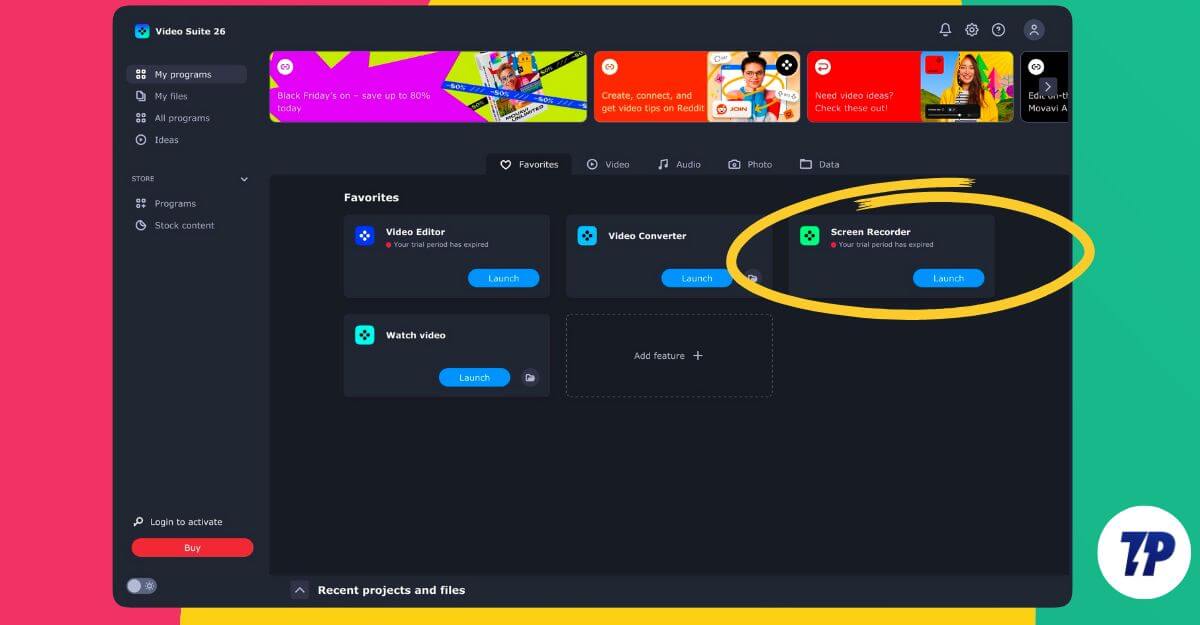
However, with all those features, sometimes external screen recorders can be complex to use, which can confuse you, making it harder if you want to quickly record videos. However, Movavi screen recorder promises to be a simple and easy-to-use screen recorder available for both Mac and Windows.
It offers an easy-to-use interface, high-quality video and audio output, real-time annotation support and much more. In this guide, you will learn everything about Movavi and why it might be the best screen recording tool you should use.
Top 5 Features of Movavi Screen Recorder
Easier to Use, Even for Beginners
Unlike OBS, which is also one of the biggest competitors for a screen recorder, Movavi is easier to use. First, you can immediately start recording without needing to go through a dedicated setup.
You can get a quick control sidebar in which you can record videos. The best part is that it is easy to access and available instantly as soon as you start opening the app, making it easy to record videos quickly. This alone saves you significant time, especially when you record multiple times.
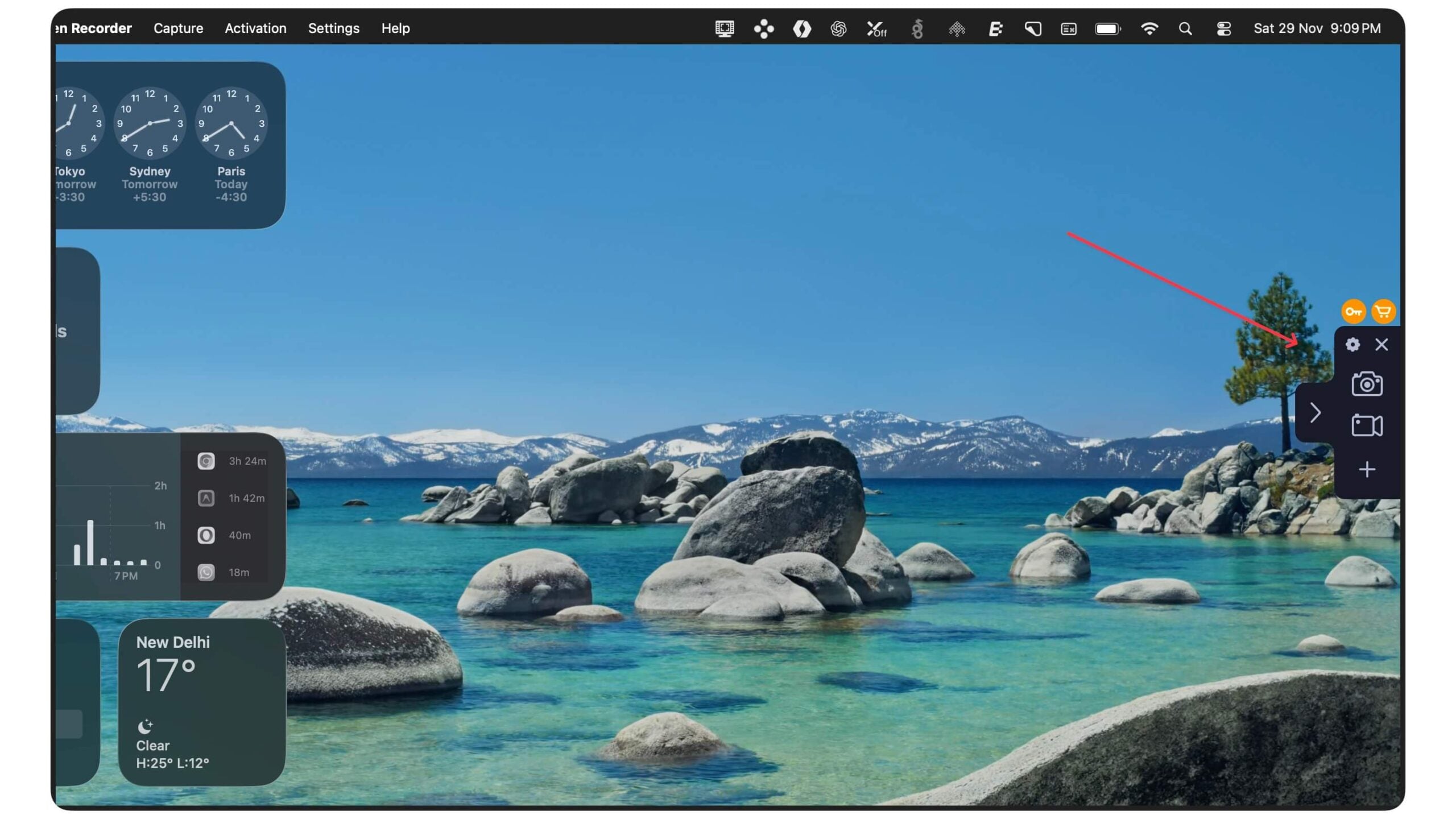
Next, it offers a way to use widgets to simply start recording the screen on the go and access all other tools more easily. Not just that, you can also set pre-configured settings so that you won’t have to tweak and adjust the settings every time you want to record a new video. All these easy-to-use design choices make it the best tool, even for beginners, with advanced recording options.
Supports Real-time Annotations
If you often screen record tutorials, Demos, and instructions. Movavi Screen Recorder is the best option to go for. It supports real-time drawing and annotation tools in real-time, so that instead of re-editing the video, you can simply highlight important parts of the screen while recording it live.
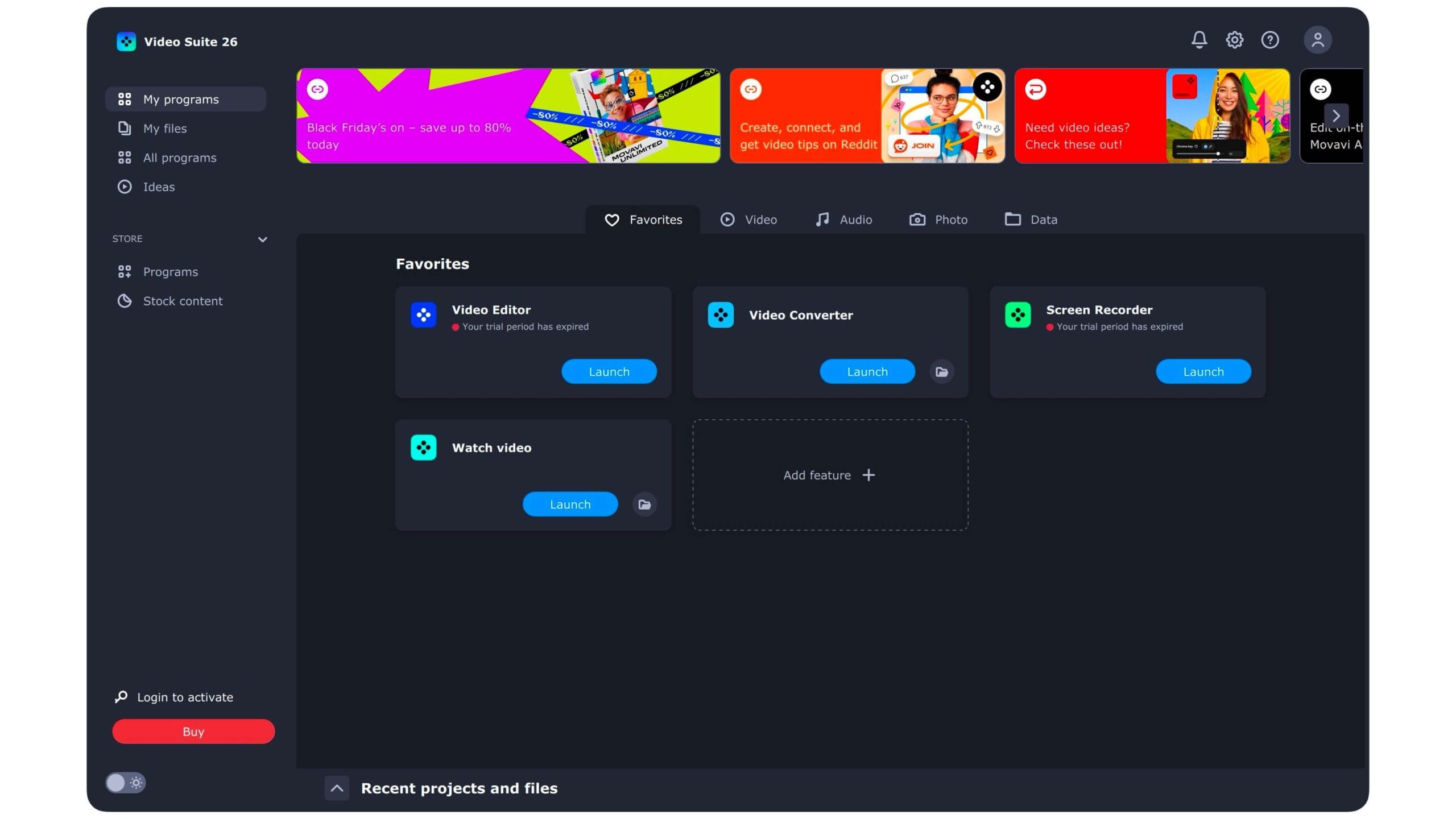
You get all the highlights and explain specific parts, including the support for geometric shapes such as arrows, rectangles, circles, and frames, freehand lines, the ability to insert text boxes directly, highlight mouse cursors, display keystrokes, and much more.
Scheduled and Automated Recording
One feature that you won’t find on other screen recorders but is available natively on Movavi screen recorder is the ability to record your computer screen, even when you are not available. For instance, if you attend webinars, live streams, classes, and online meetings, you can simply schedule an automated recording and view it later. This can be extremely useful, especially when you are out of users who have work, travel, or have time zone differences.
The best part is you also don’t need to worry about your battery life, as soon as the tool completes recording, you can schedule it to power off automatically. You can also set multiple tasks and select a duration. However, your PC or the software should be active to automatically start recording, and you can also automate this using a few powerful Windows tools.
Built-In Scrolling Screenshot Capability
If you also capture screenshots along with screen recording capabilities, Movavi also comes with built-in screen capture tools, along with support for scrolling screenshots for capturing long pages. So you can capture images and record videos from the same tool without needing to switch between multiple apps.
The best part is, unlike most tools, Movavi’s built-in screen recorder supports scrollable screenshots on almost all applications, with scrollable support, including web browsers, PDF documents, spreadsheets, and text editors. And once you capture, you get all the annotation tools to edit screenshots. You can also open them and include these screenshots in the live screen recording and start editing.
Affordable Compared to Others
Most of the third-party screen recorders have premium options to access all the features, and this is the standard model, with years of update support depending on your plan.
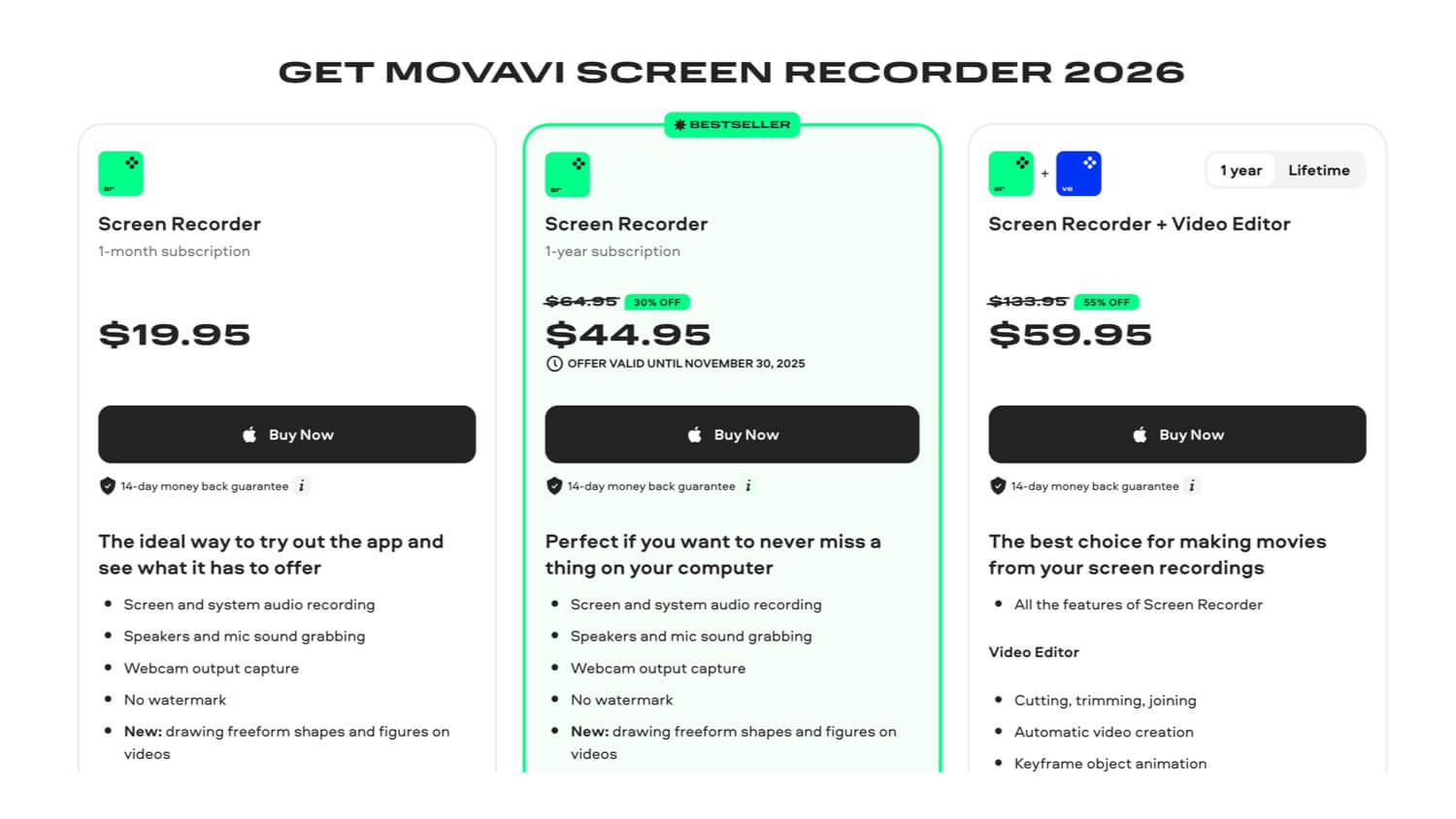
However, what sets Movavi apart is its affordable plans, especially for students, beginners, small creators, and freelancers with a limited budget. For comparison, here is how Movavi screen recorder compares against its competitors.
|
Feature
|
Movavi Screen Recorder
|
OBS Studio
|
Camtasia
|
Bandicam
|
Loom
|
|---|---|---|---|---|---|
|
Ease of Use
|
Easy to use
|
Requires a learning curve
|
Also suited for beginners
|
Easy to use
|
Easy to use
|
|
Real-time Annotations
|
Yes
|
No
|
Yes
|
Yes
|
Limited
|
|
Scheduled Recording
|
Yes
|
No
|
No
|
Yes
|
No
|
|
Video Editing
|
Basic
|
Advanced with plugins
|
Advanced
|
Minimal
|
Basic
|
|
Game Recording
|
No
|
Excellent
|
Limited
|
Excellent
|
No
|
|
Best For
|
Great for most users
|
Gamers and streamers
|
For content creators
|
For gamers and YouTubers
|
For business
|
Is Movavi Right for You?
If you are looking for an external screen recorder, Movavi is the best option to choose, whether you are looking for the best features at an affordable price. Movavi is also currently offering Black Friday discounts, in which you can get a screen recorder for an even more discounted price. You can visit the website, check the features, and purchase if it meets your needs.